WinCam 4.0是一款轻量级Windows屏幕录像工具,支持60帧/秒录制、硬件加速,适用于教程、游戏和网络通话录制。8.7 MB体积,操作简单,功能强大。
原始标题:WinCam 4.0 Multilingual
WinCam 是由 NTWind Software 开发的一款轻量级、功能强大的 Windows 屏幕录像工具。作为截屏软件 WinSnap 的兄弟产品,它专为快速创建视频教程、录制游戏过程以及捕捉网络通话而设计。
File size: 8.7 MB
WinCam is a powerful and extremely easy-to-use screen recorder for Windows. It can deal with a given application, a region or the entire screen – and record everything that goes on in there. With the ability to capture up to 60 frames per second, WinCam makes sure your recording doesn’t miss a tiny thing, while hardware acceleration renders and encodes video in real time and truly effortless.
Designed as simple as possible, WinCam is packed with functions that allow for almost any use: recording video tutorials, saving Skype calls, capturing various media in real time and creating visual content in a hit of a button.
Choose the desired video source and effects, click the Record button and proceed as usual: work in any application, watch video or play games. When you’re done, click WinCam icon or press a hotkey, and the video of your activity is ready for sharing.
Live Preview
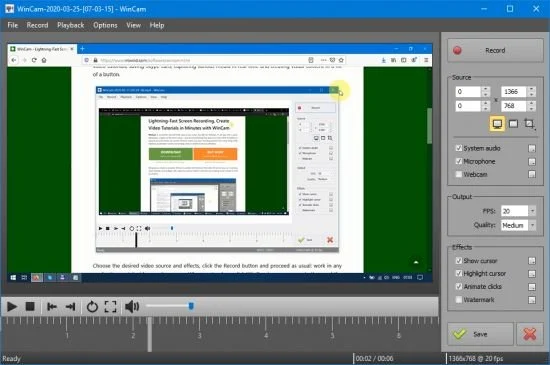
WinCam incorporates the same design philosophy as WinSnap (our screenshot creator). On the right pane, you can adjust the video source, the frame rate and post-processing effects, and preview these changes immediately without starting recording.
Cursor Zoom, Highlight and Click Animation
Creating a tutorial, you can make your cursor pop by adjusting its size, adding the highlight effect and mouse click animations. Alternatively, when recording a live-stream video, you might want to hide the disturbing cursor at all.
System Audio and Microphone
With WinCam, you can record system audio, microphone or both simultaneously. The selected audio signals are automatically resampled to achieve the best possible quality, mixed together and encoded in real time alongside the video.
Basic Video Editing
When recording is done, you can preview it and do some basic editing directly in WinCam. Double-click the timeline or use the corresponding toolbar buttons to set the start and end times of the video. Then click the Save button to save your clip as a copy or overwrite the original video.
WinCam supports all versions of Windows from Windows 8 to Windows 11. Native 64-bit version is included in the setup package and installed automatically.
System Requirements: Windows 8 to Windows 11
此处内容需要权限查看
会员免费查看